TestAjanı User Guide

1. What is TestAjanı?
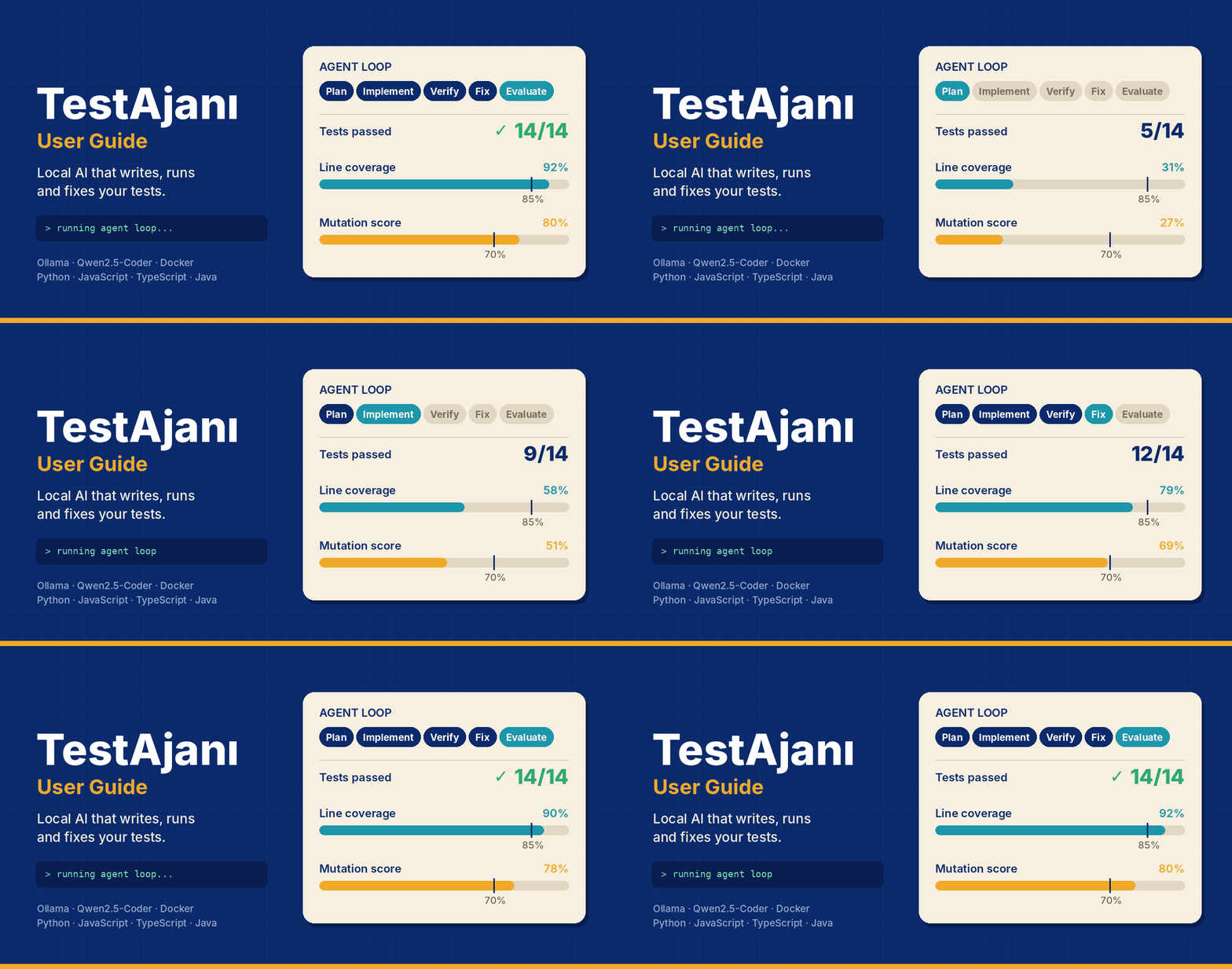
TestAjanı reads your code, explains it and writes automated tests for it. It runs with a local AI model on your own computer (Ollama), so your code never leaves your machine.
The app does not just write tests, it actually runs them: it sees tests that do not compile or that fail, and fixes them. At the end it gives you:
a code explanation describing what the code does,
a working test file you can copy into your project,
a coverage map showing how much of the code the tests exercise,
a mutation score measuring how well the tests catch bugs,
a shareable HTML / PDF report.
Supported languages are Python, JavaScript, TypeScript and Java; browser tests can also be written for web pages (HTML + JS). This guide covers basic use, from installation to getting a report.
2. Installation and start-up
You need two programs: Docker Desktop and, preferably, Ollama installed on the computer (it makes the best use of the graphics card). Unzip the package into a folder; everything is done with the launchers in the folder’s root.
Required software
Software | Required? | Purpose | Download |
Docker Desktop | Yes | Isolated environment that runs the app and the code | |
WSL 2 (Windows only) | Yes | Docker Desktop’s back end on Windows; version 2.1.5 or later | |
Ollama | Recommended | Runs the AI model; installed on the computer it uses the graphics card best (without it, a slower Ollama runs inside Docker) | |
Qwen2.5-Coder model | Yes (automatic) | The model that explains code and writes tests. The launcher downloads it on first start: 7b ≈ 4.7 GB, 14b ≈ 9.0 GB | |
NVIDIA graphics driver | Recommended | Fast model execution on the GPU and the GPU monitor | |
A current web browser | Yes | The interface (Chrome, Edge or Firefox) | — |
Minimum hardware Docker requires on Windows: a 64-bit processor, 8 GB RAM and hardware virtualisation enabled in BIOS/UEFI; Windows 10 22H2 or Windows 11 23H2 and later (source). For the 14b model, 12 GB or more of graphics memory is recommended. You do not need to install Python, Node.js or Java; they all ship inside Docker.
Launchers
Launcher (Windows) | What it does |
Baslat-Windows.bat | Checks Docker, builds and starts the app, downloads the model the first time and opens http://localhost:8000 in the browser. |
Durdur-Windows.bat | Stops the app. History, results and downloaded models are kept. |
GPU-Kontrol-Windows.bat | Checks whether the model runs on the graphics card and how fast (tokens/s); also reports whether the running app is the latest version. |
Onar-Windows.bat | If the interface still looks old after an update: removes the old app, rebuilds it and verifies the version. |
Kisayol-Olustur-Windows.bat | Adds desktop shortcuts (once). |
macOS has .command and Linux .sh equivalents.
Double-click Baslat-Windows.bat. The first run can take a few minutes.
When the window shows [OK] Surum: …, the browser opens by itself.
The small version label next to “TestAjanı” at the top left should match the version of the zip you unpacked.
Updating: unpack the new zip and run Baslat-Windows.bat from the new folder. A desktop shortcut may still point to the old folder; refresh it with Kisayol-Olustur-Windows.bat.
3. Interface overview
The app is a single page: tabs and status indicators at the top, the selected tab’s content below.

Top bar, from left to right:

Item | Description |
Version label | Next to “TestAjanı”; shows the running version. |
Tabs | Workspace, Evaluation, Compare, Experiments, History. |
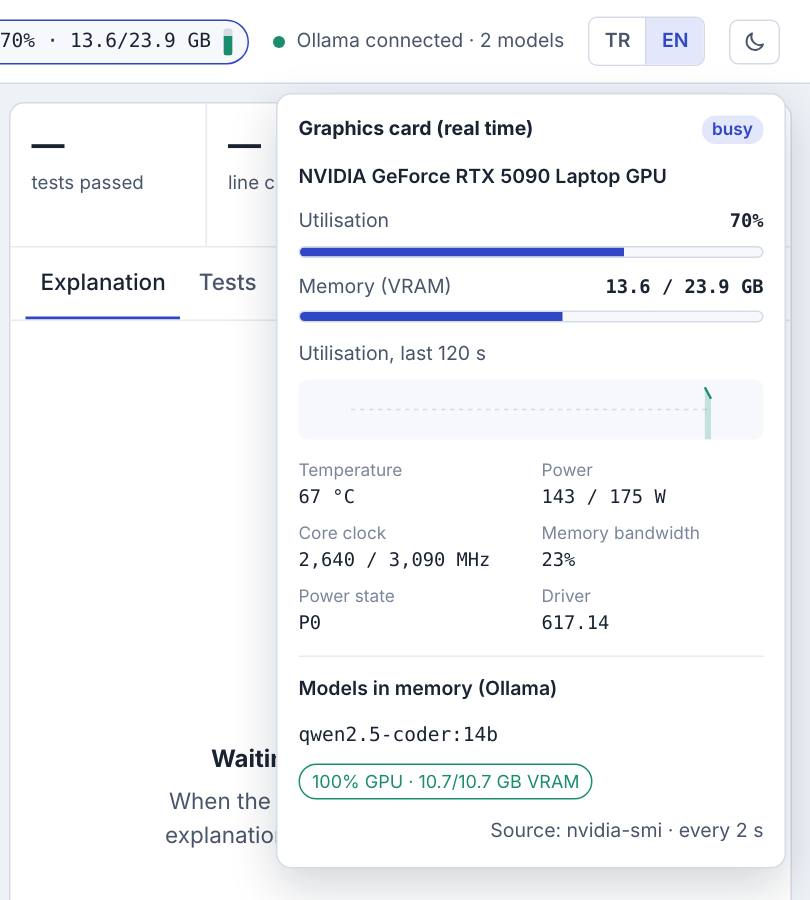
GPU monitor | Graphics card name, utilisation and memory (VRAM). The dot pulses while the card is busy. |
Ollama status | Green: model server connected; red: not running. |
TR · EN | Switches the interface language; the agent flow, code explanation and reports follow. |
Sun / moon | Switches between light and dark mode. |
Click the GPU monitor for details: utilisation graph, temperature, power, clock speed and the GPU share of the loaded model. A green “100% GPU” model row means all is well; amber means part of the model runs on the processor, which is slow.
4. Generating tests (Workspace)
Generating tests for one piece of code takes four steps, all in the left panel.

Enter the code. Three ways:
paste or type the code into the editor;
pick a ready-made example from Load sample…;
choose a file with Open file, or drag and drop it onto the editor.
Choose the language and test type. The language is picked from the file extension. Test type: Unit (behaviour of functions and classes), Interface (public API contract), Web UI (user flows in the browser; JavaScript/HTML only).
Check the settings (bottom). The defaults suit most cases.
Press Generate tests. While the agent works the button turns into Stop.
Setting | Default | Meaning |
Model | qwen2.5-coder:7b | The model to use. 14b gives better results but is slower. |
Max rounds | 4 | How many times the write → run → fix loop may repeat. |
Coverage target % | 85 | The loop stops early once this is reached. |
Mutants | on, 25 | Number of small faults injected to measure how well the tests catch bugs. |
Mutant round | on | Faults the tests missed are shown to the agent, which adds tests to catch them (one extra round). |
Several files or a project zip
If you pick several files or a zip with Open file, the app switches to project mode. Choose the file to test from the list in the blue strip; the other files are placed next to it as helpers, so import lines work. Coverage and mutation are measured on the chosen file only. The × button leaves project mode.

Limits: 200 KB per file, 600 KB in total, at most 30 helper files. Tooling and configuration files such as package.json, node_modules and __pycache__ are skipped automatically.
5. Reading the results
Once a run starts, the middle panel shows every agent step live (Plan → Implement → Verify → Fix → Evaluate); the strip below it shows each round’s coverage. The right panel holds summary cards and four tabs.

Card | What it shows | Good value |
Tests passed | Passing / total tests on the original code | All (e.g. 14/14) |
Line coverage | Share of code lines the tests execute | 85% or more |
Mutation score | Share of injected small faults the tests catch | 70% or more |
Verification rounds | How many rounds the loop took | Fewer is faster |
Tab | Contents |
Explanation | What the code does, its units, edge cases, the test plan and possible bugs the tests revealed. If you change the language afterwards, the explanation is translated once by the model. |
Tests | The generated test file with Copy and Download buttons, and the result of each test. |
Coverage | The source coloured line by line: green executed, red never executed; ● killed, ○ surviving mutant. |
Mutation | Each injected fault, its line and result (killed / survived). If the mutant round ran, the before → after score is shown in a green box at the top. |


Tip: the line of a surviving (○) mutant shows where the tests do not check a comparison or calculation exactly; adding a test there strengthens the suite. The “possible bugs revealed by the tests” are claims confirmed by an independent judge agent; the final call is still yours.
6. Getting a report (HTML / PDF)
Every finished run can produce a detailed, colour report. The report is written in the language currently selected in the interface (TR or EN).
In the Workspace: the Report (HTML), PDF and Download HTML buttons below the results panel.
In the History tab: the HTML and PDF buttons at the end of each row (older runs included).
The PDF button opens the report and brings up the print dialog; choose Save as PDF as the destination. Colours are kept and the page is laid out for A4.
The report contains, in order: an overall verdict (Strong / Good / Needs improvement), headline figures, a “What do these numbers mean?” explainer, the code explanation, findings, the round chart, the tests, the coverage map, the mutation breakdown, recommendations and run details (model, GPU share, speed, energy).

7. Evaluation, Compare and History
Evaluation
Runs the agent in bulk over the 42 programs in the built-in dataset. On the left, choose the model, number of rounds and items, then press Evaluate … items; results fill in item by item on the right. A run can be stopped with Pause and continued from where it left off with Resume; Stop ends it for good. Download report (.md) gives a Markdown report in the selected language.

Compare
Puts two evaluations (e.g. 7b vs 14b, or 1 round vs 4 rounds) side by side on the same programs. Pick two runs in boxes A and B; a chart, the averages, the difference (Δ) and statistical significance appear. p < 0.05 (starred) means the difference is unlikely to be chance, and A12 shows how large the difference is. A green Δ means B is better.

History
Lists all previous runs. Clicking a row opens the run in the Workspace; the HTML and PDF buttons at the end give that run's report.

8. Experiments
The Experiments tab runs, in one click, the long jobs that measure TestAjanı itself scientifically (model comparison, the contribution of the loop, ablations, judge accuracy). It is not needed for everyday test generation.
Profile | Duration (approx.) | When to use |
Trial | 5 min | To check quickly that the setup and GPU work (2 small programs). |
Quick | ~1 day | For preliminary results: each configuration once. |
Full (paper) | 1.5–2 days | For the paper's tables: 3 repeats, all ablations and the judge measurement. |
Durations depend on hardware; the on-screen estimate updates to your real speed as the first items finish.
On the left, choose the profile and models, then press Start experiment.
On the right you see a progress bar, the time remaining and the status of each step.
Pause: stops after the current item finishes; Resume continues from where it left off. Stop: ends the experiment for good; finished steps are kept.
When it is done, choose the report language with TR / EN and press Report or PDF. Zip downloads all results (Turkish and English reports, analysis, raw data) as a dated file.
If the computer sleeps or the app closes, the experiment is not lost: when the app restarts it resumes automatically from the item where it stopped. Even so, turning off Windows sleep mode is recommended for long experiments.

9. Troubleshooting
Symptom | Fix |
After an update the interface looks old (old version label, new buttons missing) | Run Onar-Windows.bat in the new folder, then press Ctrl+F5 in the browser. |
“Ollama not running” in the top bar | Start Ollama (the taskbar icon on Windows) or run Baslat-Windows.bat again. |
Test generation is very slow; the model shows orange or “Model on CPU” in the GPU indicator | Check with GPU-Kontrol-Windows.bat. Install Ollama on the computer instead of in Docker, update the NVIDIA driver or choose the smaller model (7b). |
The GPU indicator shows only the model share, no details | Detailed readings need an NVIDIA card. On an NVIDIA card, run Baslat-Windows.bat again; not supported on Mac. |
The model shows “(not installed)” in the model list | Run ollama pull qwen2.5-coder:7b (or :14b) in a command prompt. |
The code explanation stays in the other language | When the language is changed after a run, the explanation is translated by the model; Ollama must be running. Use the “Retry” button. |
The experiment duration looks very long | That is normal; the Full profile takes 1.5–2 days. Verify the setup with the Trial profile first. |
Docker does not start | Open Docker Desktop manually; on Windows check that WSL 2 is installed and virtualisation is enabled in the BIOS. |
If the problem persists, a screenshot of the last lines of the Baslat-Windows.bat window usually shows the cause.


Comments